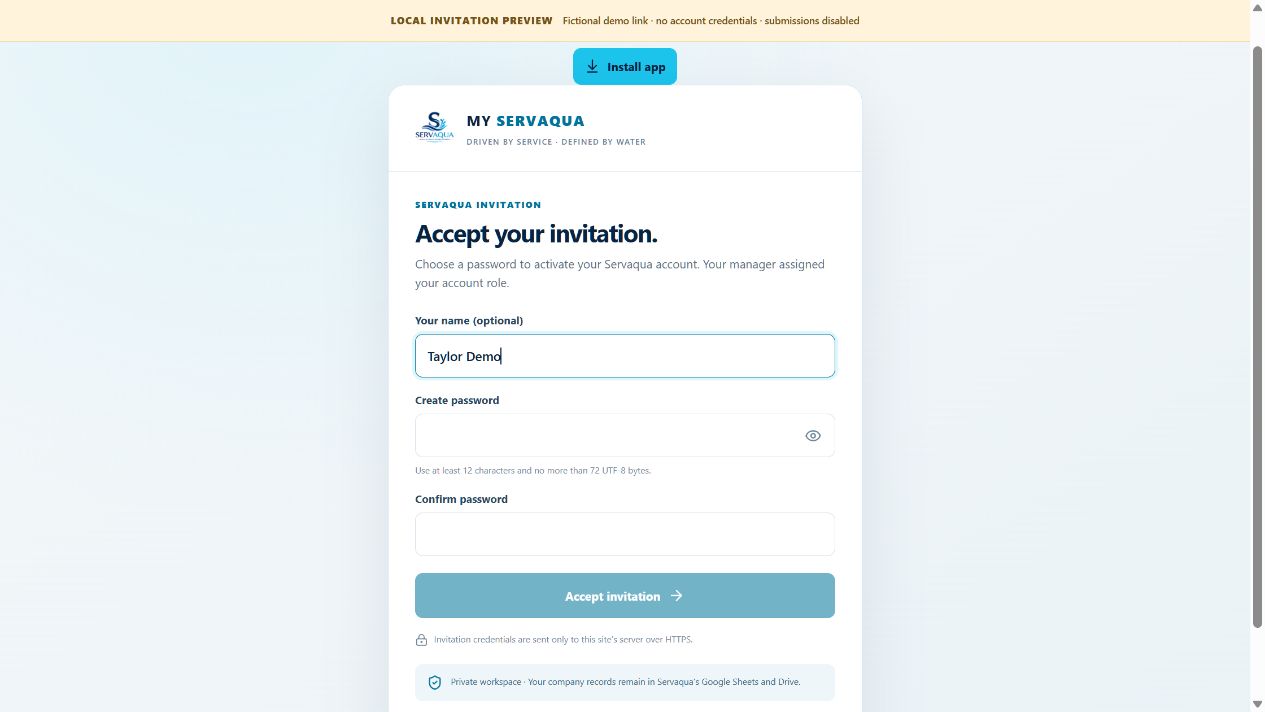
Accept your invitation
Open the personal invitation link sent by Servaqua. Choose a password with at least 12 characters. Keep the link private; it is for your account.
After setup, go to My Servaqua and sign in with your email and password.
 MY SERVAQUA
Welcome to My Servaqua
Use My Servaqua to review your recent pool visit, see service notes and photos, record a request, and respond to a repair estimate.
Open My ServaquaCustomer walkthrough · Narration and on-screen captions are included. Use the player controls to pause.
Your manager sends your invitation. Choose a password with at least twelve characters, then activate your Servaqua account.
Sign in with the email address your manager invited. Your account opens the Servaqua customer view.
Review your assigned property, most recent visit, and anything marked for your attention.
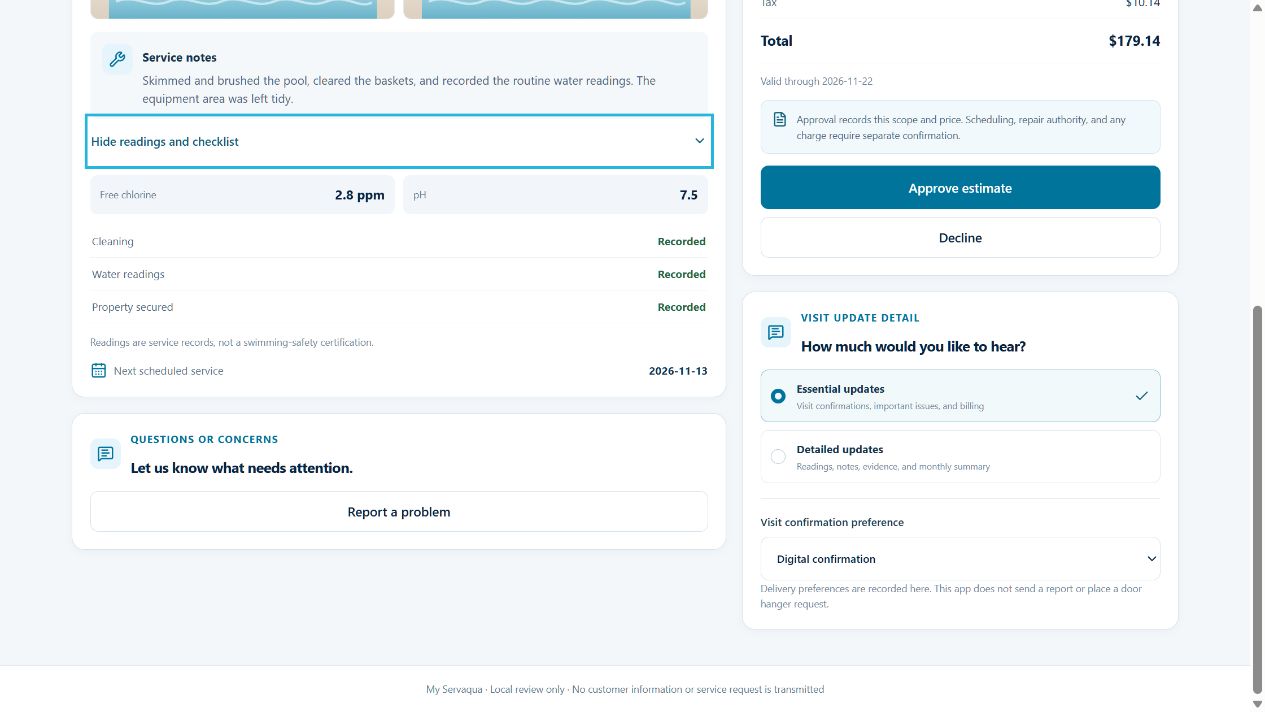
Look at the most recent visit card for notes and photos. Choose Readings and checklist to see recorded readings and service items. Readings are service records, not a swimming-safety certification.
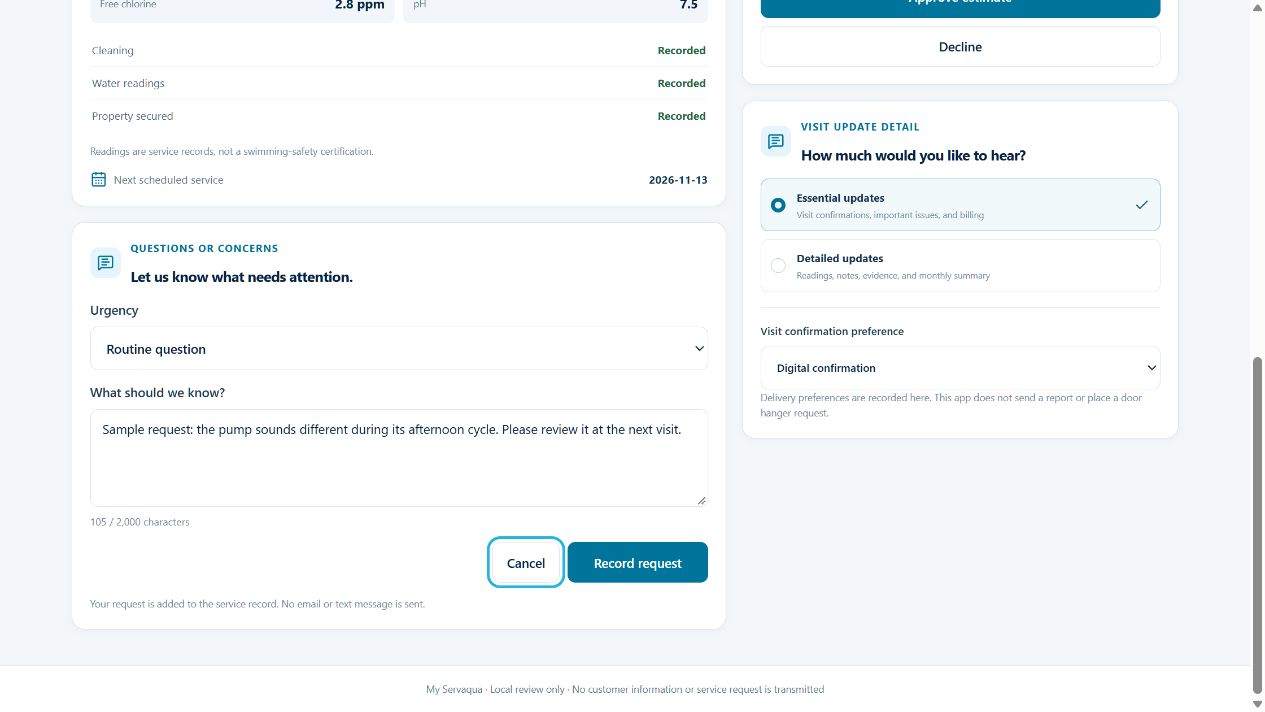
Describe a routine issue and record the request. Nothing is automatically sent. For urgent concerns, call Servaqua directly.
Review the proposed scope and price, then approve or decline. Approval records your decision; it does not schedule work or charge you.
Choose Essential for a short visit email, or Detailed for readings, notes, and a private report link. Every saved visit is emailed. Door hangers are handled separately. Add My Servaqua to your home screen for a shortcut.
Sample screens: Any customer names, pool details, photos, readings, dates, or estimates shown in the screenshots or app demonstration are illustrative examples. Your signed-in account shows only the property records assigned to you.
Follow these steps from your phone or computer.
Open the personal invitation link sent by Servaqua. Choose a password with at least 12 characters. Keep the link private; it is for your account.
After setup, go to My Servaqua and sign in with your email and password.
Your dashboard shows the property assigned to your customer account, current service records, and any open items that need your attention.
If you have more than one assigned property, select the one you want to review from My property.
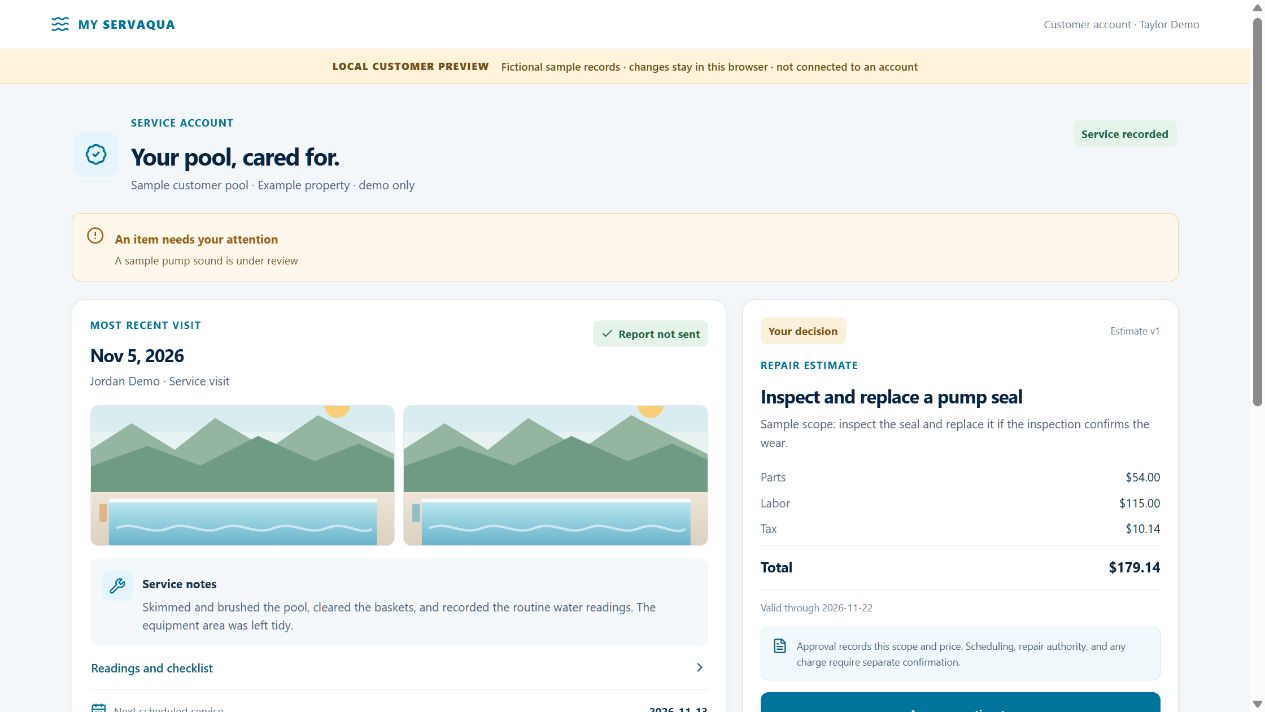
Start with the most recent visit card.
Look at the Most recent visit card to see the service date, technician, before-and-after photos when available, and any recorded notes. Expand Readings and checklist to view free chlorine, pH, and recorded service items. Use Visit history to choose an older report.
Choose Report a problem, select Routine question, Service complaint, or Active leak or safety concern, and describe what happened. Select Record request to add it to the service file.
Check the scope and total before recording a decision.
Review the described work, parts, labor, tax, total, and estimate version. For a pending estimate, select Approve estimate or Decline. Approval records your decision for the listed scope and price.
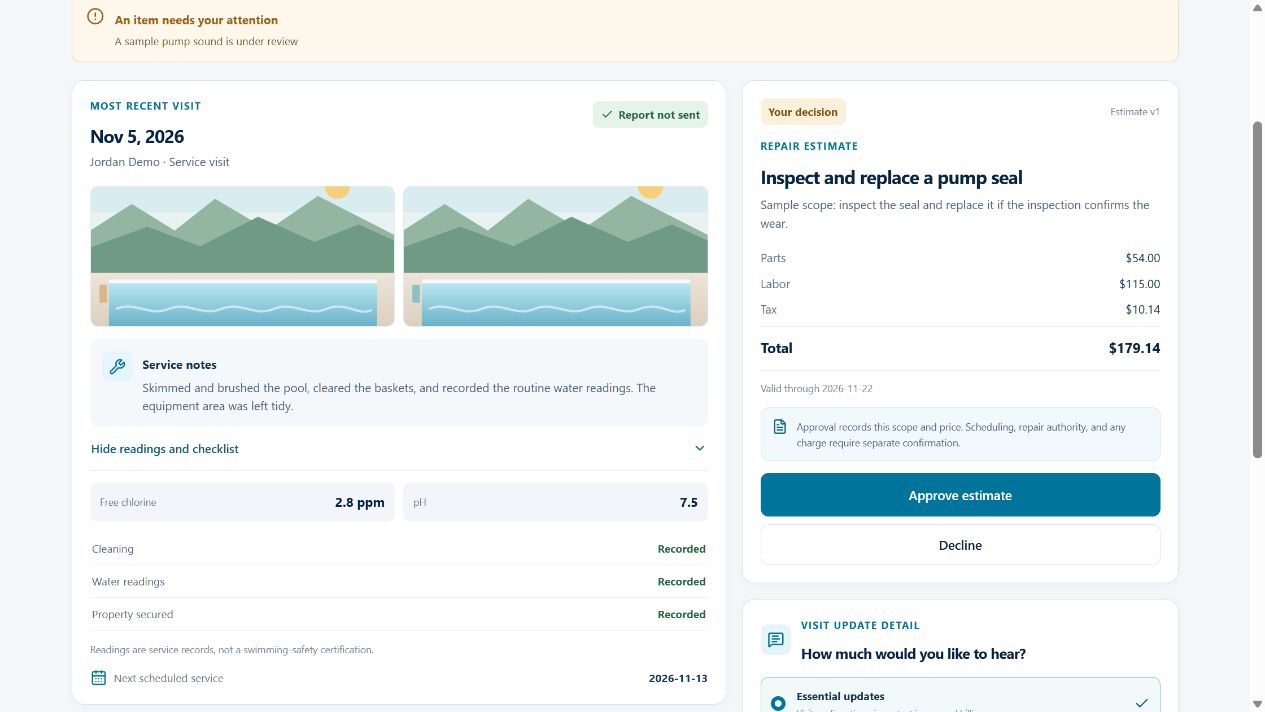
Choose Essential for a concise visit email, or Detailed to include readings, notes, and a link to the private report and photos. Each newly saved visit is emailed from service@servaquapools.com.
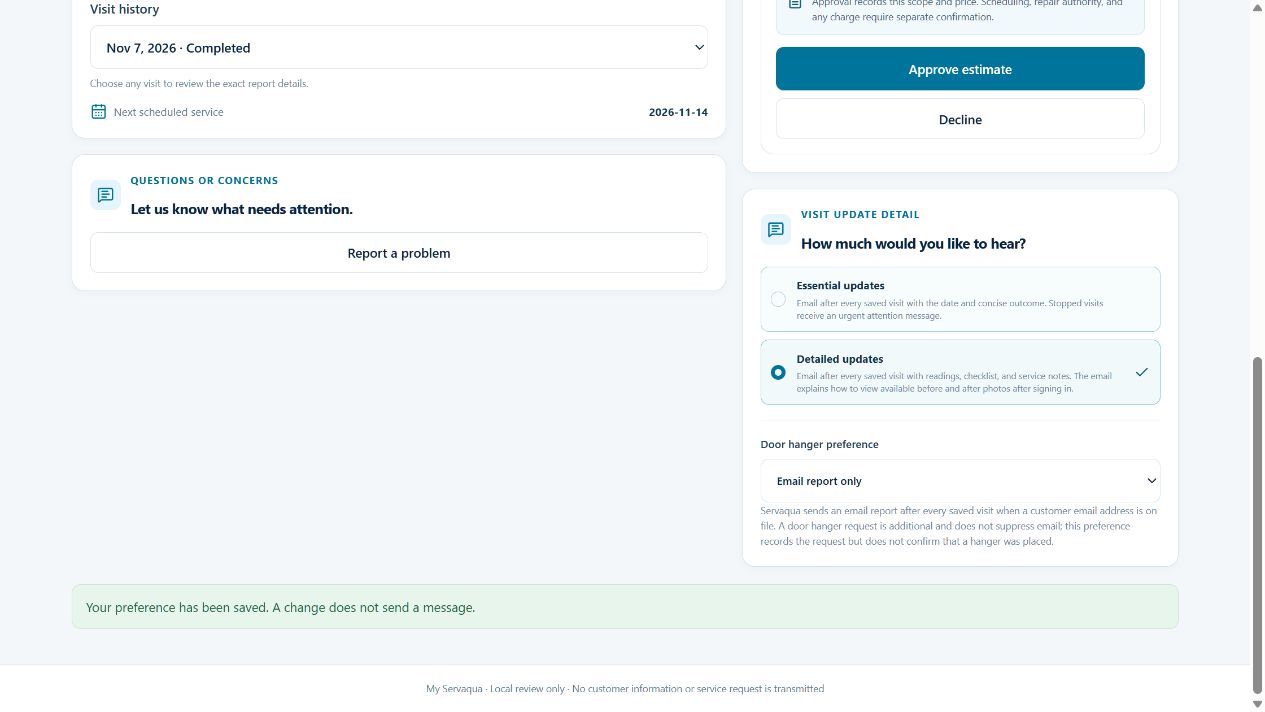
Optional—My Servaqua also works in your browser.
Use Install app when your browser offers it. On iPhone or iPad, open the site in Safari, tap Share, then choose Add to Home Screen. You can also continue in the browser.
An internet connection is needed to load and sync company records. Reconnect before submitting a customer request. Submitting a request does not send email or text notifications; contact Servaqua directly if you need a prompt response.